


Import your own 3D objects in GLB format from the FAST XR dashboard. They sync with the headset and are placed in the mixed reality room, like the objects in the FAST XR library. They are recorded in your scenarios.
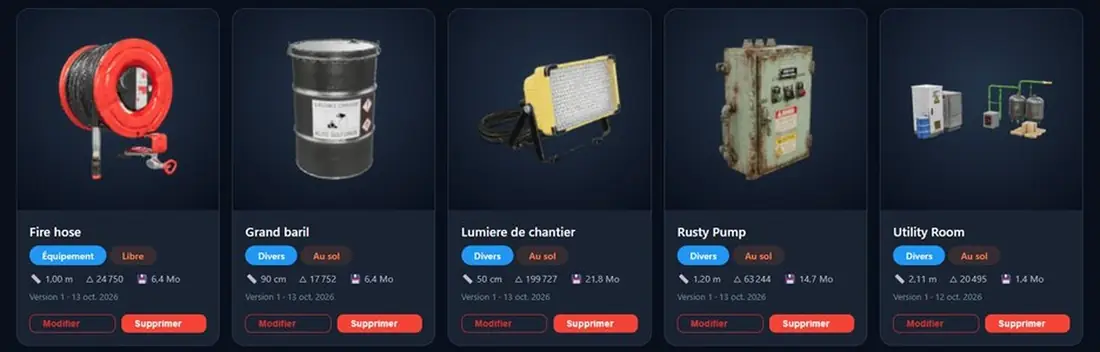
Use case
A trainee reacts better to what they know. With your own 3D objects, the situation simulation resembles their real workplace.
Electrical risk
Place the model of the real electrical cabinet and trigger the cut-off reflex before the fire attack.
Industry and logistics
Reconstruct a workshop or warehouse: work station, product barrels, storage, with the actual dimensions.
Detection and extinction
Hang them on the ceiling at their actual location to talk about detection, alarm and triggering.
Construction and Public Works
Projector, generator set, tools: the fire’s departure takes place in a believable construction site setting.
Technical facilities
Add pumps, networks and equipment to work on the intervention in a cluttered space.
Client appointment
As a demonstration, place your prospect’s equipment in the room: they immediately get immersed in the training.
How it works
Everything is done from the «My Objects» tab in your FAST XR dashboard.
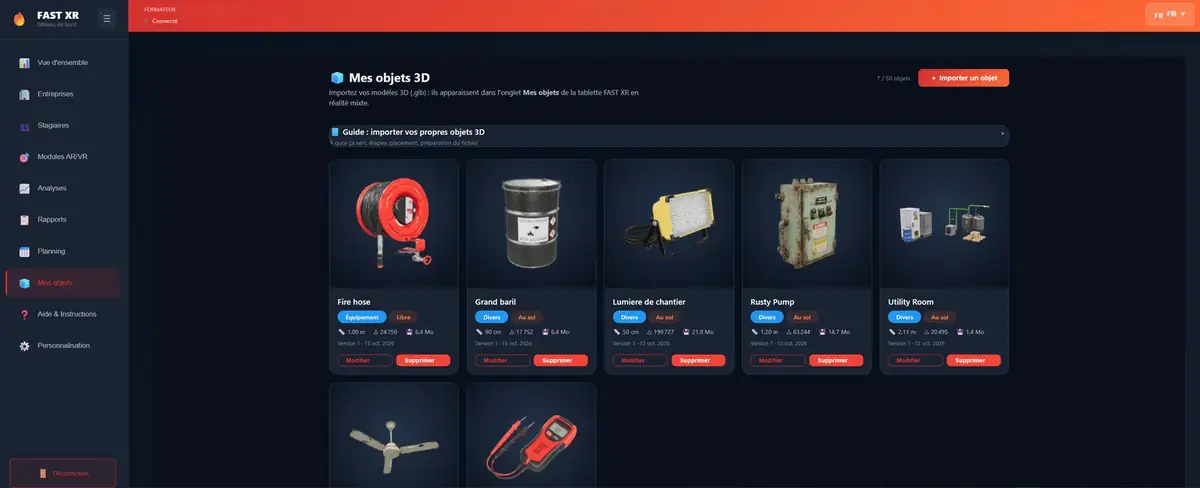
The object is placed on the floor: electrical cabinet, tank, shelf, machine.
The object is suspended: detector, sprinkler, lighting, fan.
The object is placed in the air or held in hand: tools, small equipment.
Prepare your models
Compressed files (Draco, KTX2, Meshopt), glTF 1.0 and external textures are not accepted. The dashboard will notify you before sending.
| Recommended | Maximum | |
|---|---|---|
| File size | 10 MB | 25 MB |
| Triangles | 100 000 | 200 000 |
| Textures | 2 048 px | 4,096 px |
| Objects by instructor | 50 | |
Any model in .glb format (glTF 2.0 binary), up to 25 MB and 200,000 triangles. The dashboard checks the file before sending and generates the preview and thumbnail.
No. The helmet applies the change the next time it is loaded, without reloading the model.
Only for synchronization. Then, the objects are kept in the headset and work offline.
The scenario remains valid: a reference appears in place of the deleted object.
During the video demo, ask us to show you the import of a 3D object and its placement in mixed reality.
Also discover: The dashboard · the script editor · FAST XR